
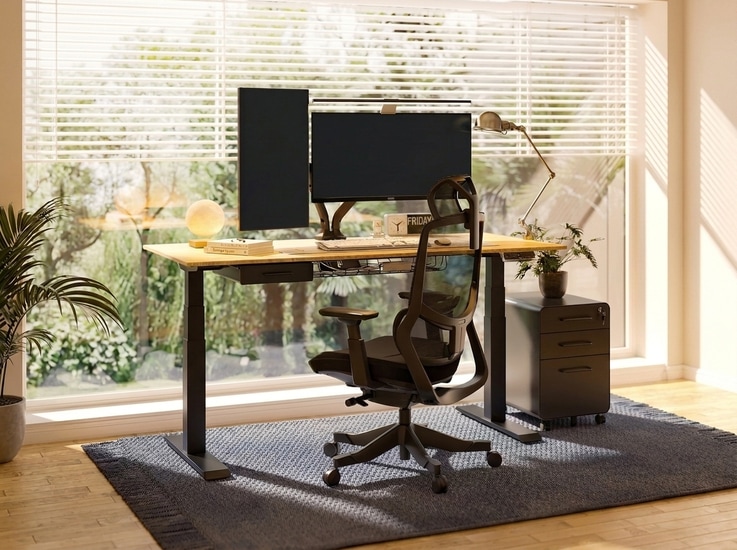
Buying a standing desk solves one problem.
It often creates a few new ones.
Your monitor suddenly feels too low. Cables start catching underneath the desk. The desktop somehow gets smaller every week.
At FlexiSpot, after working with thousands of standing desk users and testing countless setups in our own ergonomic lab, we have seen these frustrations play out again and again. None of these usually require replacing your desk. They come down to choosing the right accessories. The right accessories remove the small frustrations that interrupt your work every day.
This guide focuses on the ones that actually make a difference, based on what we have learned from real users, not just product specs.
Quick Answer: Start With These Four
Most people only need four accessories to build a comfortable, organized workspace:
- A monitor arm for better screen positioning and to reclaim desktop space.
- A cable management tray to prevent tangles and keep things tidy as your desk moves.
- A keyboard tray if your desk height or depth limits your ergonomic posture.
- Under-desk storage to keep your primary work surface clear.
If you are not experiencing one of these problems yet, you probably do not need another accessory. Everything else depends on how you work. And if you are unsure, give yourself a week or two with your new desk before buying anything. The biggest frustrations usually become obvious on their own.
Quick Decision Guide
| If your workspace... | Consider... |
| Monitor always feels too low or too high | Monitor Arm |
| Cables get caught or tangled when raising the desk | Cable Management Tray |
| Desktop always feels crowded | Under-Desk Storage |
| PC tower sits on the floor beside the desk | Adjustable CPU Holder |
| You work from a laptop and need a more ergonomic screen height | Monitor Riser Stand |
| You frequently move your desk for cleaning or rearranging | Desk Casters |
Why the Right Accessories Matter More Than You Think
A standing desk changes more than your working position. It changes how every part of your workstation interacts.
Unlike a traditional desk, everything on it, including monitors, cables, and keyboards, moves up and down throughout the day. This movement introduces new challenges that many first-time buyers do not anticipate.
A tidy cable setup while sitting might become a stretched, snagged mess when the desk rises. A monitor that is comfortable in one posture can become a source of neck strain in another.
The goal is not to own more accessories. It is to remove friction from the way you work. The right accessories help accomplish three things:
- Improve Ergonomics: Good ergonomics starts with placing your screen, keyboard, and mouse where your body does not have to compensate. Accessories allow your equipment to move independently of the desktop, so the workstation adapts to you.
- Keep Your Workspace Organized: Good organization is not just for looks. It makes frequently used items easier to reach and prevents cables from catching as the desk moves.
- Reduce Daily Friction: The best workspace feels almost invisible. You should not have to think about adjusting your monitor every morning. Small improvements remove the repetitive frustrations from your daily routine.
If Your Neck Hurts After a Few Hours, the Problem May Not Be Your Chair
Many people switch between sitting and standing, only to find their monitor is too low when standing and too high when sitting.
The problem is not the desk. It is that the monitor is fixed to the desktop.
When your screen sits too low, your neck usually does the adjusting. For many people using external monitors, this is one of the most common causes of neck discomfort during computer work. In our experience testing different monitor positions with users, we have found that even a one inch height difference can significantly affect neck posture over a full workday.
According to the Occupational Safety and Health Administration (OSHA), computer workers should position their monitor so the top of the screen is at or slightly below eye level, allowing the neck to remain in a neutral, relaxed position. An adjustable monitor arm solves this by allowing the screen to move independently of the desktop. It lets you position your monitor at the perfect height and distance for both sitting and standing postures, all while freeing up valuable space under the screen.
Note: If you primarily use a laptop without an external monitor, improving your seating position may have a greater impact than buying a monitor arm.
Who needs this most: If you spend more than a few hours a day in front of an external display and frequently change your working posture, you will notice an immediate difference in comfort.
You probably do not need it: If you only use a laptop screen or your current setup already has your screen at eye level with no adjustment needed, you can skip this.
Before buying one, check your monitor's weight and VESA compatibility. We have seen users overlook this and end up with an arm that does not fit their setup. You can compare several adjustable monitor arm options to find one that matches your needs.
If Your Desk Moves, Your Cables Need to Move Too
Fixed desks never have to solve this problem. Standing desks do.
The moment your desk rises, every cable attached to it has to stretch. Without a plan, cables can snag on the desk frame, dangle dangerously low, or collect dust.
This is one of the most common complaints we hear from new standing desk users. When we survey our customers about their biggest setup frustrations, cable management consistently ranks near the top.
--altImgStart--{"link":"https://s3.springbeetle.com/prod-us2-bucket/standing-desk-cable-management-tray_20260717_WVKcFlHp.png","alt":"Close-up of the underside of a white standing desk featuring a metal cable management tray holding power strips, power bricks, and neatly wrapped cables."}--altImgEnd--
A simple under-desk cable management tray provides a dedicated space for power strips, adapters, and excess cable length. It keeps cords organized and allows the desk to move freely through its full height range without pulling or snagging.
Who needs this most: Anyone using more than one or two powered devices, especially with a multi-monitor setup, docking station, or desktop PC. The more cables you have, the more you need this.
You probably do not need it: If your setup consists of just a laptop and a single charger, you might be fine with a simple zip tie or cable sleeve.
For a complete guide to routing cables on a standing desk, see our full article on standing desk cable management.
If Your Forearms Are Tired, Your Keyboard Is Probably Too High
Whether you need a keyboard tray depends on your desk height and typing posture.
If your keyboard sits too high, your wrists bend upward and your forearms lose support. A keyboard tray lowers the keyboard independently of the desktop, helping you keep a more neutral position while freeing up workspace.
--altImgStart--{"link":"https://s3.springbeetle.com/prod-us2-bucket/integrated-drawer-keyboard-tray_20260717_nMUdDCr9.png","alt":"Integrated desk drawer with two configurations: open storage (27” x 11.6” x 3”) and pull-out keyboard tray for ergonomic typing."}--altImgEnd--
Cornell University Ergonomics Web recommends keeping wrists straight and forearms parallel to the floor while typing. This position reduces strain on the tendons and nerves in the wrist. A keyboard tray can help achieve this posture.
Who needs this most: This is a great solution for people with shallower desktops who need more space, or those who find their standing desk does not go low enough for perfect sitting posture.
You probably do not need it: If your desk already lowers to the correct sitting height and has sufficient depth, adding another moving surface may only increase complexity.
Stability matters more than adjustability. A tray that flexes or wobbles quickly becomes frustrating to use, no matter how many adjustment points it offers.
If Your Desktop Keeps Shrinking, Look Underneath
Most desks do not become cluttered overnight.
One charger becomes two. Then come headphones, notebooks, external drives, and everything else you need within arm's reach. Each item seems harmless until you look up one day and realize you have no room left to work.
A simple under-desk drawer keeps frequently used items close at hand while clearing valuable workspace.
--altImgStart--{"link":"https://s3.springbeetle.com/prod-us2-bucket/under-desk-drawer-before-after_20260717_Xmq17GGP.png","alt":"Before and after comparison of an under-desk drawer organizing office supplies, showing how it clears cluttered desktop space and keeps items tidy."}--altImgEnd--
Who needs this most: If you regularly need pens, sticky notes, charging cables, or small adapters within reach and find them taking over your desk, this is a game changer.
You probably do not need it: If you already use nearby shelving or storage cabinets and do not mind reaching for them, you may not need built-in storage.
Measure your leg clearance before installing anything beneath the desk. Compare different under-desk drawer and storage options based on how much space you actually need.
If Your PC Is on the Floor, You Are Missing a Simple Upgrade
A desktop tower creates one problem that laptop users never have.
Every time the desk moves, the distance between the computer and the desktop changes. This requires longer cables, increases clutter, and makes cleaning more difficult.
An adjustable CPU holder mounts your computer to the underside of your desk, allowing it to move with the desk. This keeps cable lengths consistent, protects the tower from dust, and frees up valuable floor space.
--altImgStart--{"link":"https://s3.springbeetle.com/prod-us2-bucket/adjustable-cpu-holder-under-desk_20260717_k0hti5vL.png","alt":"Adjustable under-desk CPU holder with mounting knobs and perforated metal frame for secure computer tower placement and cable management."}--altImgEnd--
Who needs this most: Anyone using a desktop PC with a standing desk.
You probably do not need it: If you use a laptop or an all-in-one PC, this is not for you.
Make sure the holder supports both the height and weight of your tower. If your computer lives under your desk, this is one of the simplest upgrades you can make. It is worth looking at adjustable CPU holders that move with the desk during height changes.
Three Upgrades You May Eventually Appreciate
Not everyone needs these on day one. But as your workspace grows, these additions can solve problems that are not obvious when you first buy a standing desk.
You mostly work from a laptop
A monitor riser with built-in storage provides an alternative to a full monitor arm. It raises the screen closer to eye level and often adds storage for small items. This is a useful option if you want better screen positioning without the complexity of a monitor arm.
--altImgStart--{"link":"https://s3.springbeetle.com/prod-us2-bucket/monitor-riser-with-built-in-storage_20260717_uqQWgflP.png","alt":"Before and after comparison of a monitor riser with built-in storage organizing desk accessories, clearing clutter and optimizing vertical workspace for better ergonomics and productivity."}--altImgEnd--
You need more storage than your desktop provides
For workspaces that need more organization, a mobile file cabinet or storage cabinet for a home office can add storage without taking up desk space. This is a good option for home offices with limited cabinet space.
--altImgStart--{"link":"https://s3.springbeetle.com/prod-us2-bucket/mobile-file-cabinet-with-lock_20260717_fjTn8J2B.png","alt":"Mobile file cabinet with lockable drawers and rolling casters — secure storage for documents and office supplies, easy mobility with smooth-rolling wheels."}--altImgEnd--
You frequently rearrange your room
If you regularly move your desk for cleaning or rearranging your space, locking desk casters can make the process much easier while keeping the desk stable during everyday use.
--altImgStart--{"link":"https://s3.springbeetle.com/prod-us2-bucket/standing-desk-stability-with-locking-casters_20260717_BCtyPitR.png","alt":"Electric standing desk with locking casters installed to improve mobility while maintaining stability during everyday use."}--altImgEnd--
Accessories Most People Can Skip
Not every standing desk accessory deserves a place in your workspace. If you are just getting started, these upgrades can usually wait:
- Decorative desk shelves that do not serve a functional purpose
- RGB light strips that are more for aesthetics than utility
- Cup holders that add clutter rather than solve a problem
- Headphone hooks if your desk space is not at a premium
- Oversized monitor light bars that add more visual clutter than benefit
Focus on the accessories that solve problems first, and consider the "nice-to-haves" later.
Common Mistakes When Buying Standing Desk Accessories
Before ordering another accessory, ask yourself:
- Am I solving a real problem or copying someone else's setup?
- Will I use this every day?
- Could I solve the same issue by adjusting my existing equipment?
- Will this accessory still be useful if my workspace changes?
Resist the temptation to buy every accessory at once. After a week or two of using your desk, the biggest frustrations usually become obvious. Start there.
Give yourself time to discover what is actually missing before filling your workspace with accessories. The best workspaces usually evolve one problem at a time.
Start With One Problem, Not Every Accessory
If your neck hurts after a few hours, start with a monitor arm.
If cables keep getting caught beneath the desk, organize them first.
If your desktop keeps shrinking, add storage before buying a larger desk.
Most workspaces do not need every accessory. They simply need the right solution for the biggest daily frustration.
Comparison: Which Accessories Solve the Biggest Problems?
| Accessory | Solves | Best For | Priority |
| Monitor Arm | Neck strain and screen positioning | External monitor users | ★★★★★ |
| Cable Management Tray | Cable clutter and snagging | Standing desk setups | ★★★★★ |
| Keyboard Tray | High keyboard position | Typing all day | ★★★★☆ |
| Under Desk Storage | Desktop clutter | Small home offices | ★★★★☆ |
| Adjustable CPU Holder | Cable length and floor clutter | Desktop PC users | ★★★☆☆ |
| Monitor Riser Stand | Laptop screen height | Laptop users | ★★★☆☆ |
Final Thoughts: Build Your Workspace for the Way You Work
A standing desk is only as functional as the accessories that support it.
Instead of buying everything at once, ask yourself one question:
"What is the most annoying part of using my desk today?"
Solve that first. The right accessory is the one that solves that specific problem.
A well-planned workspace is not about owning the most accessories. It is about owning the right ones for the way you actually work.
Frequently Asked Questions
1. Are standing desk accessories worth buying?
Yes, but only if they solve a specific problem you experience daily. A monitor arm for neck pain or a cable tray for tangled wires can make a meaningful difference. Buying accessories "just in case" usually is not worth it.
2. What accessories should I buy first for a standing desk?
Start with a monitor arm, a cable management tray, and under-desk storage. These three address the most common issues: screen positioning, cable clutter, and workspace organization. A keyboard tray is a good fourth if your desk height limits your posture.
3. Can I use a monitor arm on any standing desk?
Most monitor arms fit any desk with a thickness between 0.5 and 3 inches. Check your desk's edge thickness and the arm's clamp size before buying. Weight capacity matters too. Make sure the arm supports your monitor's weight.
4. Do standing desks need cable management?
They need it more than fixed desks do. Because cables move every time the desk adjusts height, they can snag, stretch, or tangle without proper routing. A cable management tray is the simplest way to prevent this.
5. Is under-desk storage worth it?
Under-desk storage is worth it if you regularly need small items within reach and find them taking over your desk. A simple drawer or organizer reduces clutter and keeps frequently used items accessible without taking up additional floor space. Just measure your leg clearance first.
Sources
- Occupational Safety and Health Administration (OSHA). Computer Workstations: Good Working Positions.
- Cornell University Ergonomics Web. Ergonomic Guidelines for Setting up a Computer Workstation.