
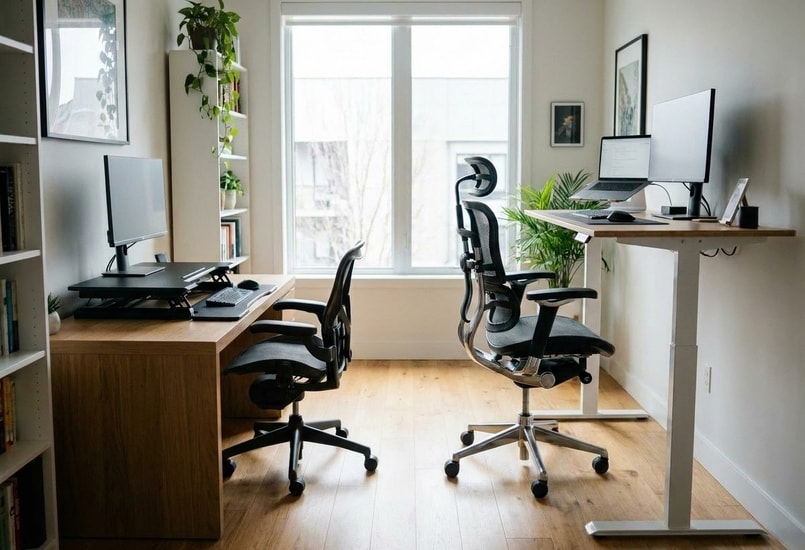
A lot of people want a sit-stand workspace. Far fewer actually want to spend a fortune building one.
So the search usually starts the same way:
- What is the cheapest way to get a sit-stand workstation?
- Are standing desk converters worth it?
- Is a standing desk adjustable manually?
At first glance, the answer seems obvious: buy the cheapest standing desk available or place a standing desk converter on top of an existing desk and call it a day.
But after a few months, many low-cost setups start revealing the same problems: wobbling at standing height, cramped keyboard space, unstable monitor positioning, cable clutter, limited lifting range, and desks that technically work but quietly discourage movement throughout the day.
That is the part most budget buying guides fail to explain. The goal is not simply spending less money upfront. The goal is building a setup that removes as much friction from daily work as possible — even six months down the road.
Why Cheap Standing Desk Advice Online Often Feels Incomplete
A lot of "budget standing desk" content online focuses almost entirely on upfront price comparisons. But real-world usability usually matters far more than the initial price tag.
For example:
- A desk can technically lift enough weight while still wobbling violently during heavy typing.
- A converter can technically raise your monitor while completely eliminating usable desk depth.
- A manual desk can technically adjust height while feeling inconvenient enough that you stop using the feature regularly.
- A small frame may work perfectly with a standalone laptop but struggle once dual monitors and monitor arms enter the setup.
The hidden issue is that many people underestimate how much time they eventually spend at their workstation. A setup that feels acceptable during the first week can become frustrating after months of daily use.
Tiny sources of workflow friction — unstable monitors, cramped posture, visible cable clutter, awkward sit-stand transitions — accumulate over time. Eventually, the desk stops feeling invisible and starts demanding negative attention throughout the workday.
That is why the smartest affordable sit-stand setups usually prioritize long-term usability instead of chasing the absolute lowest upfront price. If you are still on the fence about whether making the switch is right for you, check out our comprehensive guide:Is a Standing Desk Worth It for Your Home Office?
The Three Cheapest Ways to Build a Sit-Stand Workspace
Today, most budget sit-stand setups fall into three categories:
--altImgStart--{"link":"https://s3.springbeetle.top/prod-common-bucket/commodity/item/1028_file_A%20comparison%20table%20showing%20costs,%20pros,%20and%20limitations%20of%20standing%20desk%20converters,%20manual%20hand-crank%20desks,%20and%20electric%20standing%20desks._20260527_OOGPR9Ur.png","alt":"A comparison table showing costs, pros, and limitations of standing desk converters, manual hand-crank desks, and electric standing desks."}--altImgEnd--
--altImgStart--{"link":"https://s3.springbeetle.top/prod-common-bucket/commodity/item/1028_file_Infographic%20comparing%20standing%20desk%20converter,%20manual%20hand-crank%20desk,%20and%20electric%20standing%20desk%20options._20260527_f4bDAoG1.png","alt":"A comparison table showing costs, pros, and limitations of standing desk converters, manual hand-crank desks, and electric standing desks."}--altImgEnd--
Each option solves a different problem. The mistake is assuming the cheapest option automatically creates the best long-term value.
The real question is not which setup is technically cheapest. It is which setup introduces the least amount of friction into your daily workflow. That distinction matters much more than most buyers initially realize.
Are Standing Desk Converters Worth It? (The 3-Month Reality Check)
For some people, yes. If you already own a premium, sturdy desk and simply want to experiment with standing while working, a converter is often the fastest and cheapest entry point. This is especially true for students, hybrid workers, renters, or temporary workspaces.
But converters also introduce compromises that many generic reviews gloss over.
The first issue is usable desk space. Once you add a monitor, keyboard, mouse, speakers, and notebooks, smaller converters can start feeling cramped surprisingly quickly.
The second issue is ergonomics. Because a converter sits on top of your existing desk, it permanently raises the keyboard height above your original desktop. Even at its lowest setting, the platform still adds several inches of unavoidable thickness.
For someone who was already comfortable typing at 29 inches, suddenly being forced up to 33–34 inches can feel immediately unnatural. Shoulders creep upward. Wrists bend at steeper angles. Sitting posture starts feeling compromised before you even begin standing.
But the opposite problem often appears at maximum height. Many budget converters still do not rise high enough for taller users to maintain a properly ergonomic standing posture without hunching forward slightly.
In other words, cheaper converters can end up feeling stuck in an awkward middle ground: too tall for comfortable sitting, yet not tall enough for ideal standing.
Instead of adjusting the workstation to fit the body, people end up adjusting their posture to fit the limitations of the converter itself.
The third and most critical issue is stability. A converter creates two separate moving layers instead of one unified frame, meaning vibrations can compound at standing height. Small movements from typing travel through both the converter mechanism and the underlying desk surface simultaneously.
Once monitor arms extend farther away from the centerline of the desk, leverage amplifies that movement even more. This is why cheaper converters often feel significantly shakier with dual monitors or ultrawide displays than they initially appear in polished product photos.
The Setup Tip: Many budget converters extend outward in a "diagonal arc" when raised, pushing you away from your desk and eating up valuable room space. If you go the converter route, look for a straight up-and-down vertical lifting mechanism that keeps the center of gravity stable within the footprint of your existing desk, eliminating the common "tip-forward" anxiety when fully loaded with dual screens.
Is a Standing Desk Adjustable Manually? (And Is It Worth the Effort?)
When people ask, “Is a standing desk adjustable manually?”, the assumption is usually that manual hand-crank desks are outdated remnants of the past. In reality, a well-designed manual desk can still be an extremely smart, budget-friendly option.
The biggest advantage is mechanical simplicity. Fewer electronic components usually mean:
- Lower production cost passed down to you.
- Zero electrical failure points or burnt-out motors.
- Easier maintenance and no need for a nearby power outlet.
- Less cable complexity underneath the desk.
The downside, however, comes down to human behavior and convenience. One of the biggest misconceptions about standing desks is that standing all day is automatically healthier than sitting all day. In reality, ergonomics experts usually emphasize movement variation instead. The real benefit comes from regularly changing posture throughout the day. Neither standing nor sitting is better when done exclusively. The healthiest approach is alternating between both.
That means behavioral consistency matters more than people expect.
If changing your desk height feels physically annoying or time-consuming (such as hand-cranking a handle 30–40 times every hour), many people unconsciously reduce how often they adjust the desk. The problem is not motivation; the problem is friction. Even tiny interruptions repeated multiple times per day gradually discourage posture-switching behavior.
This is exactly why electric frames have become increasingly popular in home offices. Smooth lifting systems, better weight distribution, and quieter transitions make posture changes feel almost frictionless — especially once larger multi-monitor setups enter the picture.
Stability Matters More Than Most People Realize
One of the biggest mistakes budget buyers make is underestimating how important structural stability becomes once the desk reaches standing height. At sitting height, almost all desks feel relatively similar. At standing height, engineering weaknesses become blindingly obvious.
Even small amounts of wobble can create monitor vibration that slowly causes eye strain and distraction during long work sessions. This becomes especially noticeable with dual-monitor arms or ultrawide displays because monitor arms effectively extend weight farther away from the lifting columns. The farther equipment sits from the structural center of the frame, the more leverage amplifies movement.
Several engineering factors affect standing desk stability:
- Frame steel thickness and grade
- Leg orientation (T-frame vs. C-frame)
- Column overlap between lifting stages
- Number of legs supporting the frame
--altImgStart--{"link":"https://s3.springbeetle.top/prod-common-bucket/commodity/item/1028_file_Diagram%20showing%20the%20difference%20between%20unstable%20thin%20steel%20desk%20columns%20and%20heavy-duty%20premium%20steel%20desk%20legs._20260527_EHmivMTJ.PNG","alt":" Diagram showing the difference between unstable thin steel desk columns and heavy-duty premium steel desk legs."}--altImgEnd--
The Real Difference Between Low-Cost and Entry-Level Premium Desks: Ultra-budget, generic desks often use thin steel with loose single-stage columns that leave large tolerances inside the legs. Higher-quality entry-level frames built with thicker steel and improved lifting-column overlap tend to feel dramatically more stable during daily use than ultra-budget alternatives. This heavier gauge ensures that even near maximum extension, lateral wobble is significantly reduced compared to generic alternatives, allowing the lifting columns to support heavy equipment smoothly and quietly.
This is also one reason four-leg standing desk frames have become increasingly popular for heavier dual-monitor environments where front-to-back stability matters more.
For advanced setups or corner environments, heavier multi-motor frames or L-shaped sit-stand layouts solve another issue many people underestimate initially: usable movement space. The best workstation setups are always the ones that quietly disappear into the background instead of constantly reminding you the desk is moving underneath your expensive equipment.
The Hidden Cost of Bad Cable Management
Most people do not think about cable management when building a budget workspace. They should.
Poor cable routing becomes much more noticeable on a sit-stand desk because every single cord moves repeatedly throughout the day. Without proper management, cables snag during height transitions, connectors experience repeated tension, and power bricks pile up into a messy tangle underneath the desk.
There is also a hidden ergonomic issue many people overlook: desktop computer placement.
A surprising number of users place their PC tower directly on the floor underneath the desk. As the desk rises, cables connected to a floor-positioned PC tighten unevenly. Over time, repeated tension can strain ports, loosen connections, or create heavy cable drag during movement. Placing the PC directly on the desktop solves the tension issue, but causes usable workspace to disappear quickly, especially on narrower desks.
The Pro-Fix: This is why suspended CPU mounting systems have become increasingly common. Instead of drilling holes into the underside of your desktop, newer engineering designs clamp securely onto the heavy-duty steel frame or crossbeam itself. Structurally, this creates a rock-solid mounting point that moves together with the desk as one unified system, reducing cable tension to nearly zero.
For a complete, step-by-step breakdown on how to route these moving wires cleanly, check out our deep dive on [Standing Desk Cable Management].
Frequently Asked Questions
1. What is the cheapest way to get a sit-stand workstation?
A standing desk converter ($80–$150) is usually the lowest-cost entry point because it adapts your existing desk. However, if you do not already own a rock-solid base desk, a high-quality manual hand-crank desk ($150–$220) or an entry-level electric standing desk (starting under $300) offers far better long-term stability and ergonomics per dollar spent.
2. Is standing at a desk better than sitting? (Or is standing desk better than sitting?)
No position is superior when done exclusively. Research suggests that prolonged standing can lead to lower back fatigue, while prolonged sitting slows down metabolism. Is a standing desk good for you? Yes — but only if you use it to alternate between both postures every 30 to 45 minutes. Controlled movement variety is the real health benefit.
3. How tall should a standing desk be? (How high should a standing desk be?)
Your ideal standing desk height is determined by your resting elbow position. Stand up straight with your shoulders relaxed, bend your elbows at a strict 90-degree angle, and measure the distance from the floor to the bottom of your elbows. For example, someone who is 5’10” (178 cm) will find their ideal standing height near 41.5 inches.
--altImgStart--{"link":"https://s3.springbeetle.top/prod-common-bucket/commodity/item/1028_file_Ergonomic%20diagram%20showing%20a%20person%20standing%20at%20a%20desk%20with%20elbows%20at%20a%2090-degree%20angle%20for%20correct%20height%20measurement._20260527_PFku7zm9.png","alt":"Ergonomic diagram showing a person standing at a desk with elbows at a 90-degree angle for correct height measurement."}--altImgEnd--
4. How long should you stand at a standing desk?
Most ergonomics recommendations suggest easing into standing gradually. A common starting point is 15–30 minutes of standing per hour, alternating with sitting. Short, frequent posture changes are far more sustainable and effective at reducing lower back discomfort than forcing yourself to stand for long, uninterrupted periods.
Final Thought: The Budget Trap to Avoid
A surprising number of people overspend on aesthetic accessories — decorative pegboards, RGB lighting, and desk shelves — before fixing the fundamental ergonomics of the workstation.
But if your desk shakes while typing, your monitor height is wrong, or your workspace feels cramped, none of those cosmetic upgrades meaningfully improve your daily workflow.
A smarter upgrade order always looks like this:
- A stable desk frame or vertical-lift converter
- Proper monitor positioning and eye-level alignment
- Comfortable keyboard and mouse placement
- Heavy-duty under-desk cable management
The foundation affects everything else. The cheapest setup is usually not the one with the lowest upfront price tag. It is the one you will not want to replace in six months.