
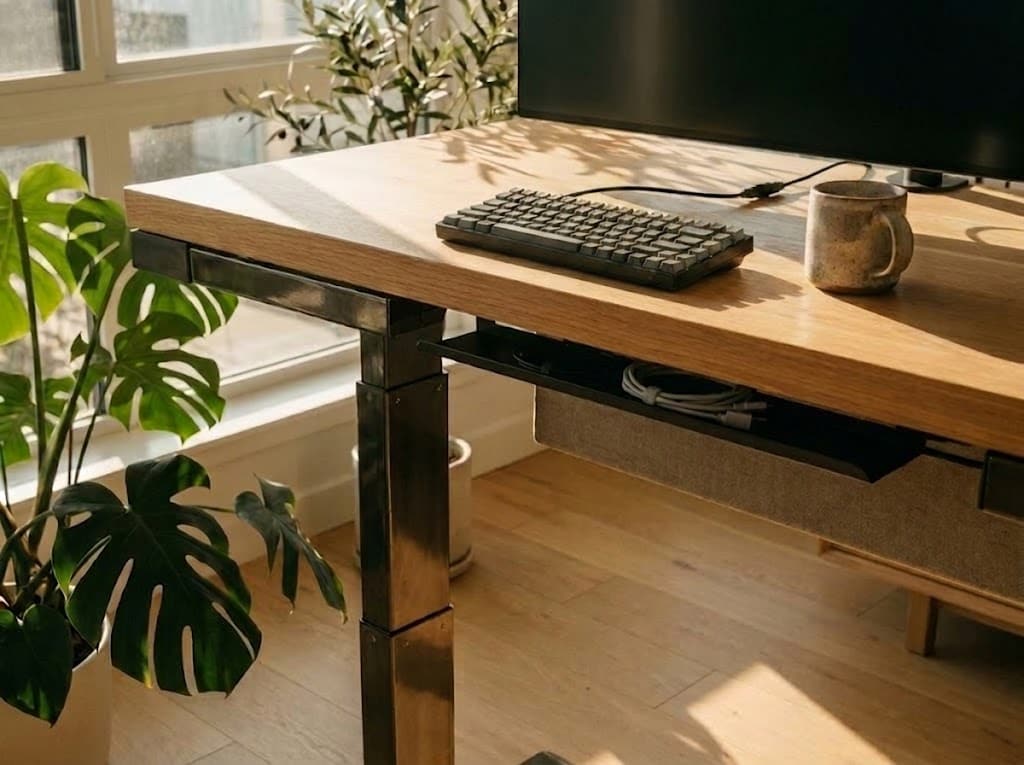
You bought a standing desk to feel better. To move more. To stop sitting all day. But a few weeks later, something starts ruining the setup. Not the desk. The cables.
A tangled mess underneath the surface. Wires catching when the desk moves. Power bricks collecting dust under the desk like a pile of forgotten adapters. Every time you raise the desk, you hold your breath for a second, hoping nothing gets yanked loose.
--altImgStart--{"link":"https://s3.springbeetle.top/prod-common-bucket/commodity/item/1028_file_Close%20up%20of%20cable%20tension%20and%20tight%20wires%20stretching%20from%20a%20side%20view%20of%20a%20sit-stand%20desk%20when%20raised%20to%20standing%20height_20260525_fosTsaEb.PNG","alt":"standing-desk-cable-tension.png"}--altImgEnd--
This is not just a cosmetic issue. Poor standing desk cable management can damage equipment, create tripping hazards, and even introduce electrical safety risks. According to a safety alert from the Lawrence Berkeley National Laboratory, a sit-stand desk incident involved a power cord disconnecting from the control box and exposing live terminals that could have caused an electrical shock if handled. You can read the full safety alert here.
That is why desk cable management matters more on a standing desk than on a traditional fixed desk. When the desk moves, every connected cable moves with it. Get the setup wrong, and you can end up with strained connectors, snagged cords, and a workspace that feels more stressful than productive.
Why Cable Management Matters More for Standing Desks
With a traditional desk, messy cables are usually just an eyesore. You can shove them behind the desk and mostly forget about them.
A standing desk is different. It moves up and down constantly throughout the day. Every cable connected to your monitor, computer, speakers, charger, or dock moves with it. One loose cable can catch the desk leg halfway up and yank your monitor connection loose.
Without proper under desk cable management, cables can:
- Snag on desk legs or chair wheels
- Get pulled tight when the desk rises
- Strain ports and connectors over time
- Become tripping hazards near the floor
- Create electrical risks if power cords become dislodged
The goal is simple: everything attached to the desk should move together as one clean system.
The fewer cables running from the desk to the wall, the cleaner and safer your setup becomes. On a standing desk, cable management is not just about appearance. It directly affects how smoothly and safely the desk moves every day.
The Best Cable Management Starts Before You Buy the Desk
Many people treat cable management as an afterthought. The problem is that adding trays, clips, and routing systems later is usually much harder than starting with a desk designed for cable organization from the beginning.
If you are still researching whether a standing desk is worth it for working from home, or wondering what standing desk is best for working from home, cable organization is one feature people often overlook at first.
Some standing desks make cable management much easier from the beginning. Higher-end models often include integrated cable organization features such as an extended cable management tray and a magnetic fabric cable cover, which become increasingly useful once multiple monitors, chargers, and accessories enter the setup.
On a fixed desk, messy wires are mostly cosmetic. On a sit-stand desk, they directly affect how cleanly and comfortably the desk functions throughout the day. Choosing a desk with cable management built in usually makes the entire setup cleaner, easier to maintain, and more comfortable to use long term.
Here is how to do it properly.
Step 1: Do a Cable Audit and Check Your Desk Height
Before buying any accessories like a cable management box, unplug everything first.
Lay every cable out where you can actually see it. This immediately shows you which cables you truly need and which ones are just contributing to the mess.
Most people discover at least a few unused charging cables, old HDMI cords, or adapters that no longer serve any purpose.
Ask yourself:
- Which cables are essential?
- Which cables are too short?
- Which cables are unnecessarily long?
- Where is the nearest wall outlet?
Your Standing Desk Height Affects Cable Length
People often organize cables only at sitting height. Then the first time they fully raise the desk, everything pulls tight underneath. This becomes even more important for taller users.
The higher your standing desk goes, the more slack your cables need. That is why desk height and cable management under desk are closely connected.
In fact, long before configuring these ergonomic adjustments, many remote workers first find themselves researching a more fundamental question: is a standing desk worth it for a home office setup? If you have already made the investment and are now dialing in your workstation, it also helps to understand the baseline mechanics of proper positioning.
A properly adjusted standing desk should let your elbows stay close to a 90-degree angle while typing. Once your preferred height is dialed in, it becomes much easier to plan safe cable routing underneath. A cable that feels fine while sitting may suddenly become too tight once the desk reaches standing height. In general, it helps to leave a little more length than you think you need. That extra slack allows the desk to move through its full height range safely.
Step 2: Mount Your Power Strip Under the Desk First
This is the single most important step. Instead of plugging every device directly into the wall, create one centralized power hub that moves with the desk.
The easiest way to do this is with an under desk cable management tray. If your desk already includes a built-in cable tray under the desktop, you can tuck power strips, charging bricks, and excess cable length completely out of sight and out of reach for curious kids or pesky pets.
For larger setups with dual monitors or multiple accessories, an extended cable management tray gives you more room to organize everything cleanly underneath the desk.
--altImgStart--{"link":"https://s3.springbeetle.top/prod-common-bucket/commodity/item/1028_file_Standing%20desk%20cable%20management%20tray%20with%20hidden%20wires%20under%20a%20clean%20modern%20home%20office%20setup_20260525_dT0nkDJW.png","alt":"standing-desk-cable-management-hidden-cable-tray.png"}--altImgEnd--
Once the power strip is mounted underneath the desk, almost every device plugs into that single hub. Now only one main power cable needs to travel from the moving desk down to the wall outlet. Some people use a cable management box organizer on the floor to hide surge protectors, but under-desk trays usually work better for standing desks because they move with the desk itself.
Below is a quick reference guide for common cable management tools: --altImgStart--{"link":"https://s3.springbeetle.top/prod-common-bucket/commodity/item/1028_file_Comparison%20table%20of%20the%20best%20standing%20desk%20cable%20management%20tools%20including%20trays,%20magnetic%20covers,%20and%20straps_20260525_5A2Q6fLe.png","alt":"Comparison table of the best standing desk cable management tools including trays, magnetic covers, and straps"}--altImgEnd--
Step 3: Route Device Cables to the Hidden Power Hub
Now connect each device to the mounted power strip underneath the desk. Start with the thickest, most annoying cables first — usually monitor power cables and desktop PC cords. They are much harder to reposition later once everything else is already routed.
As you route each cable, bundle those traveling in the same direction using reusable Velcro straps. Avoid overtightened zip ties whenever possible. Over time, they can pinch cable sheaths and damage internal wiring.
Once grouped together, route the bundles directly into your under-desk cable tray. To guide individual wires cleanly along the desk frame without dangling, use cable clips or adhesive mounts to keep everything tucked neatly underneath.
Some of the best desks for cable management use fabric-wrapped magnetic cable management systems designed to keep cables hidden while still remaining easy to access when needed.
The Desktop Computer Should Move With the Desk
One part of standing desk cable management people often overlook is the desktop computer itself.
When a PC tower sits directly on the floor, every height adjustment forces monitor cables, power cords, Ethernet lines, and USB connections to stretch between the moving desk and a stationary computer. Over time, this constant tension creates unnecessary strain on ports and connectors.
Some users solve this by placing the PC directly on the desktop, but that introduces a different problem: valuable workspace disappears quickly, especially on smaller desks or multi-monitor setups.
A cleaner solution is mounting the PC underneath the desk itself so it moves together with the frame. This keeps cable lengths consistent regardless of desk height while also freeing up desk space above.
The mounting method matters, though. Many aftermarket CPU holders require drilling directly into the underside of the desktop using multiple screws. Besides making installation more complicated, some people simply do not feel comfortable hanging a heavy computer entirely from screw points drilled into the desktop surface.
More modern designs instead attach directly to the desk frame or crossbeam itself. Because the mount connects to the metal structure rather than the desktop panel, the setup feels significantly more stable during movement and avoids unnecessary drilling altogether.
For standing desks specifically, this usually creates the cleanest overall result: fewer dangling cables, smoother movement, and far less visual clutter underneath the desk.
--altImgStart--{"link":"https://s3.springbeetle.top/prod-common-bucket/commodity/item/1028_file_Under%20desk%20CPU%20holder%20mounted%20to%20a%20standing%20desk%20frame%20for%20cleaner%20cable%20management%20and%20better%20cable%20routing_20260525_wymcgETE.png","alt":"Under desk CPU holder mounted to a standing desk frame for cleaner cable management and better cable routing"}--altImgEnd--
Step 4: Leave Enough Slack for the Desk to Move
When your desk rises from sitting height to standing height, it may travel 16–25 inches or more depending on the model. Every cable connected to a stationary point on the floor or wall needs enough extra length to move safely through that range.
If a cable becomes tight at standing height, the tension eventually damages the connector, port, or cable itself. A good rule is to leave enough slack so the cables still move freely at maximum desk height.
To keep the extra length organized, create a loose service loop near the point where the cable exits the desk frame. You can use cable clips or grip tape to keep the loop controlled while still allowing the wires to flex naturally as the desk moves up and down.
Here are some of the most common cable management mistakes people make:
--altImgStart--{"link":"https://s3.springbeetle.top/prod-common-bucket/commodity/item/1028_file_A%20troubleshooting%20chart%20showing%20common%20standing%20desk%20cable%20management%20mistakes%20and%20how%20to%20fix%20them_20260525_7cJkJhuU.png","alt":"A troubleshooting chart showing common standing desk cable management mistakes and how to fix them"}--altImgEnd--
Step 5: How to Hide Cables Under a Desk Without Drilling
A common question for renters or anyone with a premium desktop surface is how to hide cables under my desk without drilling holes. Thankfully, many modern standing desks now make this much easier.
Using a magnetic cover or under-desk routing systems allows you to guide and conceal wires along the steel frame without screws or permanent modifications.
--altImgStart--{"link":"https://s3.springbeetle.top/prod-common-bucket/commodity/item/1028_file_Showing%20how%20to%20hide%20cables%20under%20a%20standing%20desk%20without%20drilling_20260525_9E3zoQn9.png","alt":"Showing how to hide cables under a standing desk without drilling"}--altImgEnd--
For any remaining loose wires, a combination of cable clips and grip tape helps keep cables flat against the desk frame and completely out of sight. The result is a setup that feels clean, organized, and much easier to live with every day.
Step 6: Test the Full Range of Motion
Before calling the setup finished, move the desk through its full height range several times.
Raise it all the way up and watch the cables carefully.
- Is anything pulling tight?
- Is any connector under tension?
- Does any cable catch on the frame?
Now lower the desk completely. Check whether excess slack bunches underneath or gets too close to chair wheels.
A properly managed standing desk should move smoothly and quietly without resistance or visible strain on the cables.
Frequently Asked Questions
1. How do I keep cables from tangling on a standing desk?
Route cables at maximum desk height first, leave proper slack, and group them using Velcro straps inside an under-desk cable tray so everything moves as one system.
2. Do I need a special power strip?
No. A standard surge protector works fine as long as it is mounted under the desk instead of placed on the floor.
3. How do I hide cables without drilling?
Use a magnetic fabric cable cover, adhesive cable clips, or clamp-on trays. These allow clean routing without damaging the desk surface.
4. Are desks with built-in cable management worth it?
Yes. Integrated trays and magnetic covers reduce setup time and make long-term cable maintenance much easier, especially in multi-monitor setups.
Final Thought
Good cable management is not flashy, and nobody notices it immediately. But the moment your standing desk moves smoothly without a single wire catching underneath, your entire workspace starts feeling calmer.
When switching between sitting and standing feels effortless, you are far more likely to actually use your standing desk the way it was intended.
A clean workspace is usually not about buying more accessories. It is about removing the small frustrations that make a desk feel harder to use every day.